

In the previous post, we discussed how to create Azure SQL Server and Azure SQL Database. Now that we are ready with source data/table and destination table, let’s create Azure Data Factory to copy the data.
3. Azure Data Factory:
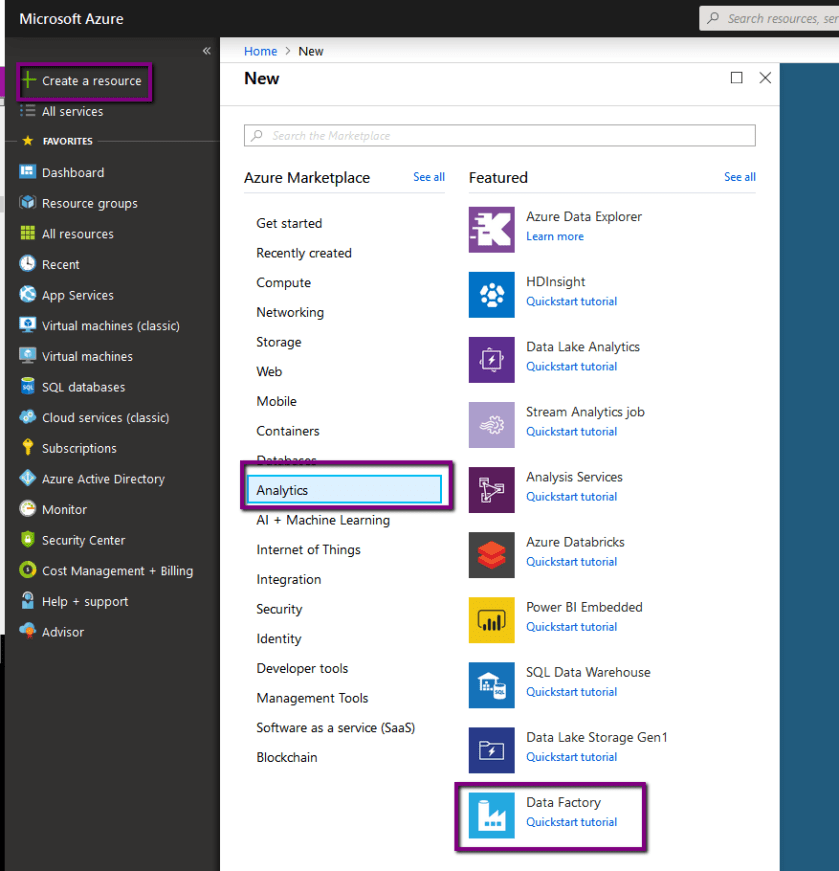
Click on Create a resource –> Analytics –> Data Factory
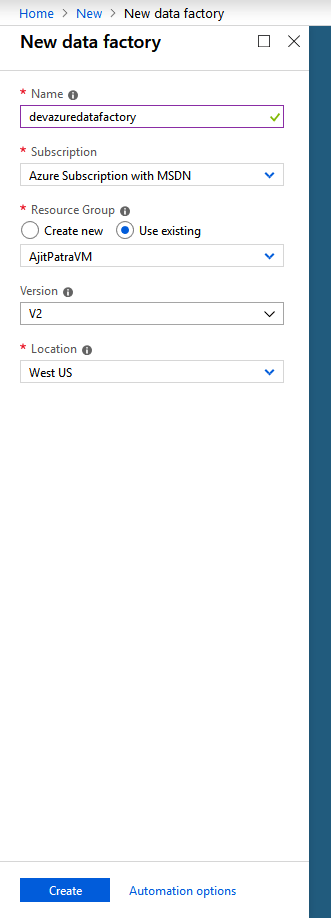
Fill the mandatory fields and click Create
After creating data factory, let’s browse it.Click on Author and Monitor.

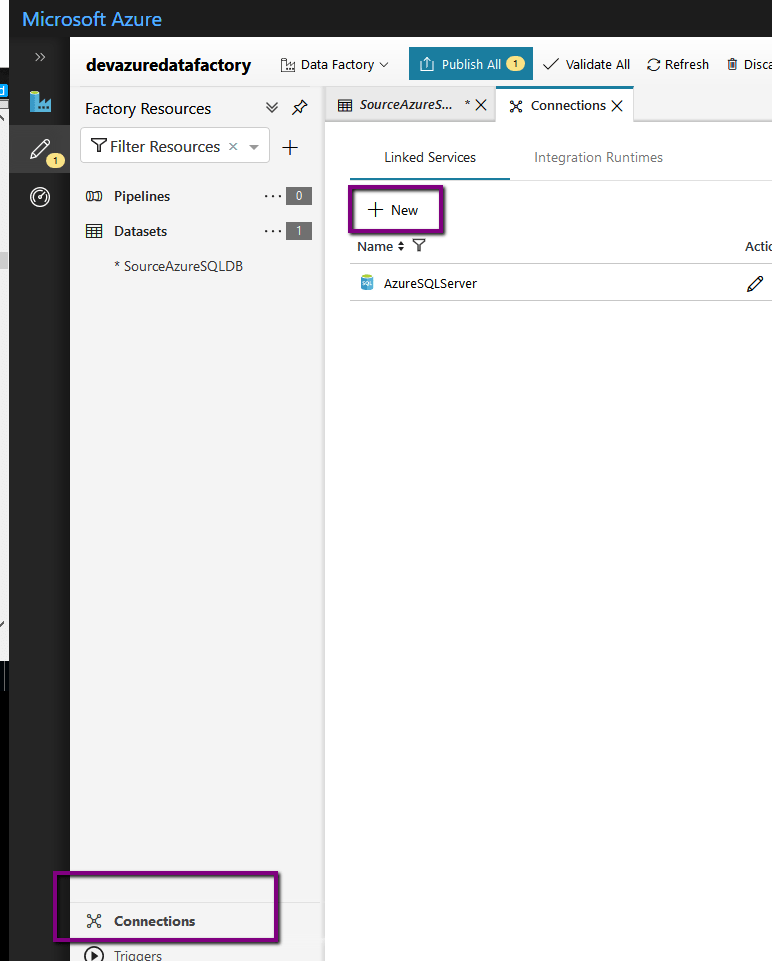
Click on Author icon on the left –> Click on Connections –> Click on +New under Linked Services tab to create a new linked service.
Select Azure SQL Database — >Click Continue.

Fill the mandatory fields in the next screen. Fill below details on the screen from the previous post:
- Server Name: Azure SQL Server
- Database Name: SourceSQLDB
- Username and Password: SQL Authentication Credential used while setting up Azure SQL server
Click on Test Connection. Once it’s successful…
View original post 682 more words
Discover more from Nishant Rana's Weblog
Subscribe to get the latest posts sent to your email.
Share It -


 Nishant Rana's Weblog